







- Top >
SPAM Filter Setup Example: Microsoft Outlook (classic) (Windows)
Setup Procedure
The following is a setup example for Microsoft Outlook (classic) on Windows.
How to Check Your Outlook Version
- Launch Outlook(classic).
-
If "Try the new Outlook" is displayed in the top right corner of the screen, you are using Outlook(classic).
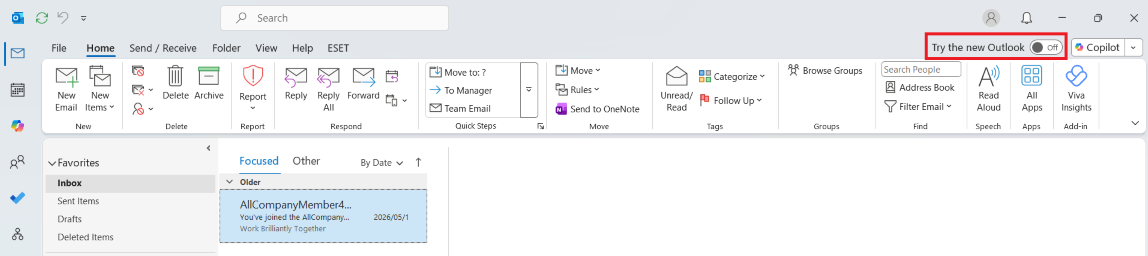
SPAM Filtering Setup Example
- Launch Outlook(classic).
-
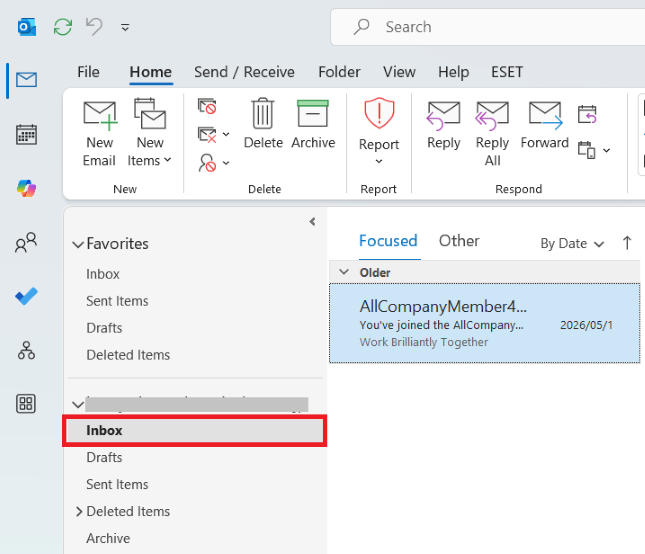
Right-click [Inbox].
-
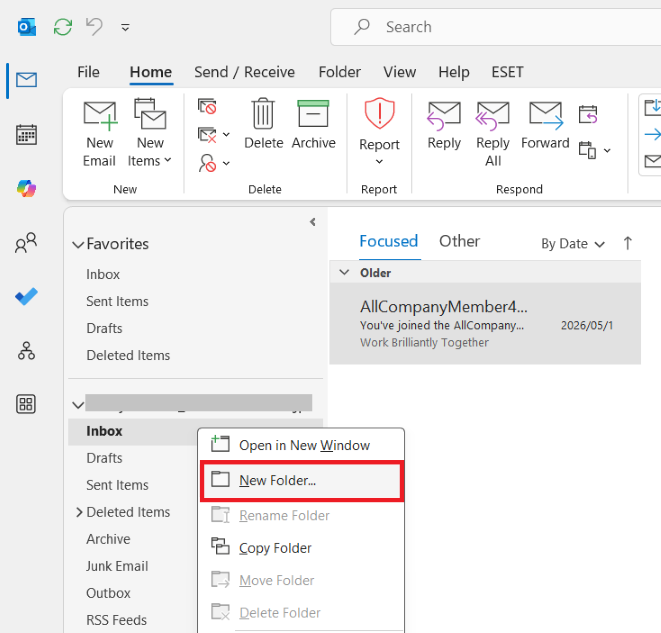
Select [New Folder] from the displayed menu.
-
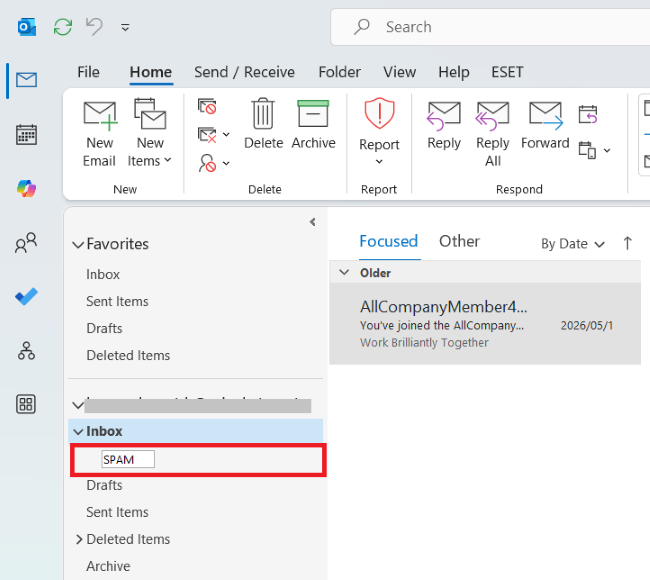
An input field will appear; enter "SPAM".
-
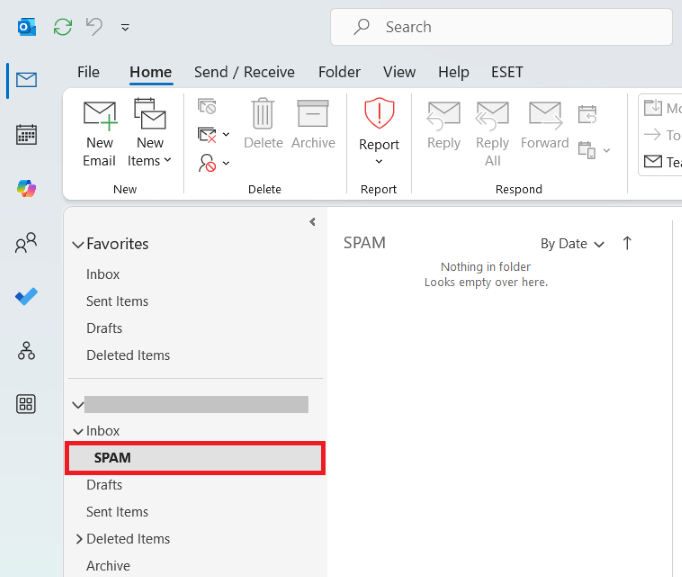
Confirm that the "SPAM" folder has been created.
-
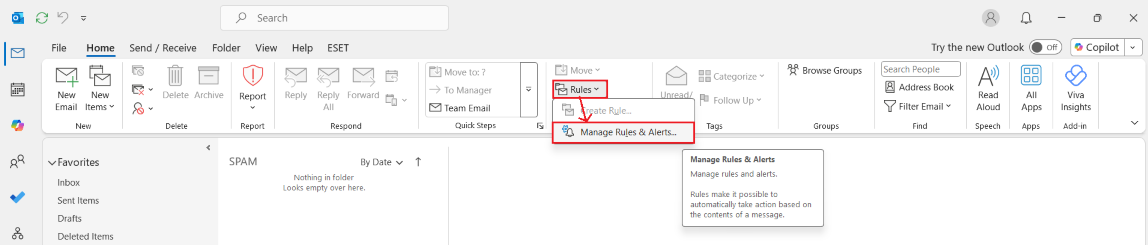
Click [Rules] > [Manage Rules & Alerts] in that order.
-
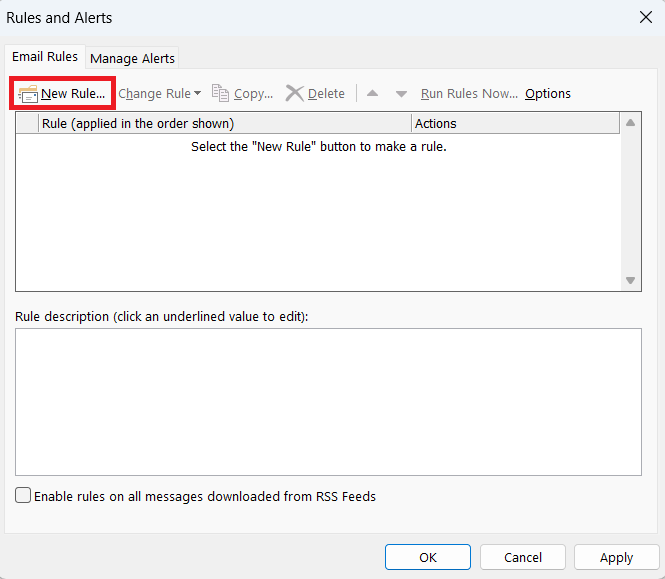
The [Rules and Alerts] window will open. Click [New Rule...].
-
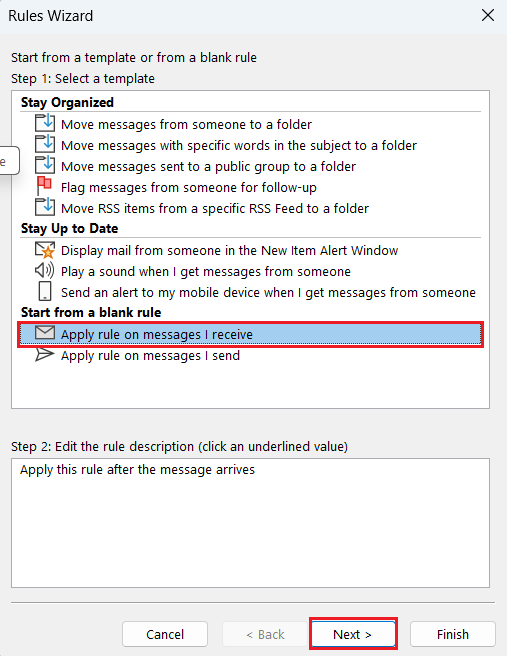
The [Rules Wizard] window will open. Select [Apply rule on messages I receive] and click [Next].
-
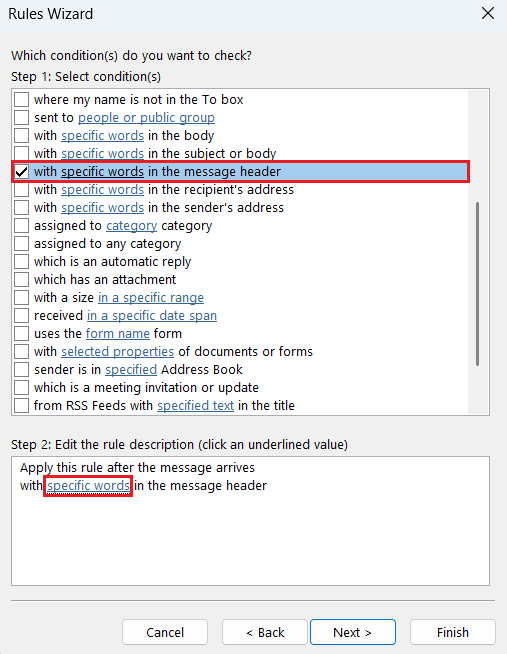
Check the box for [with specific words in the message header] and click [specific words] at the bottom of the screen.
-
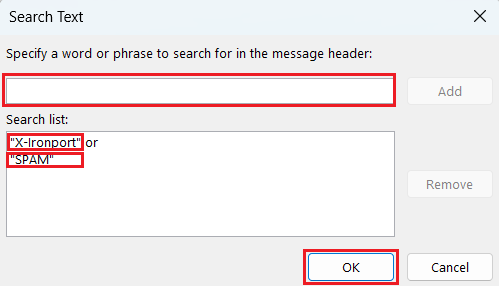
The [Search Text] dialog box will open. Enter [X-Ironport] and [SPAM] into the input field and press the Enter key. After adding them, click the [OK] button.
-
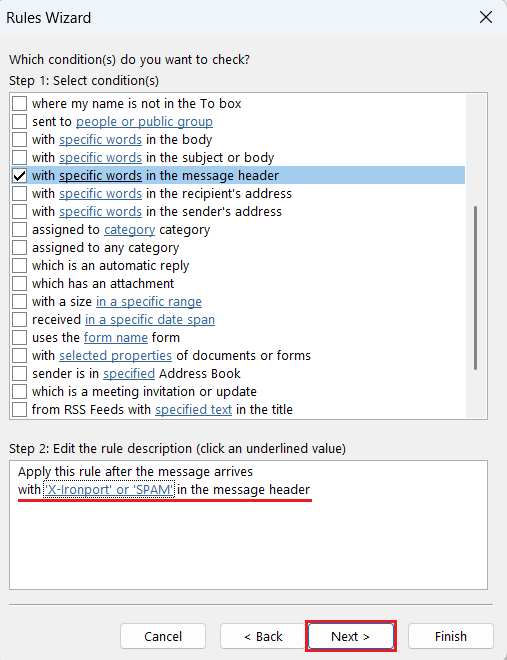
Confirm that it has changed to [with `X-Ironport` or `SPAM` in the message header], and click [Next].
-
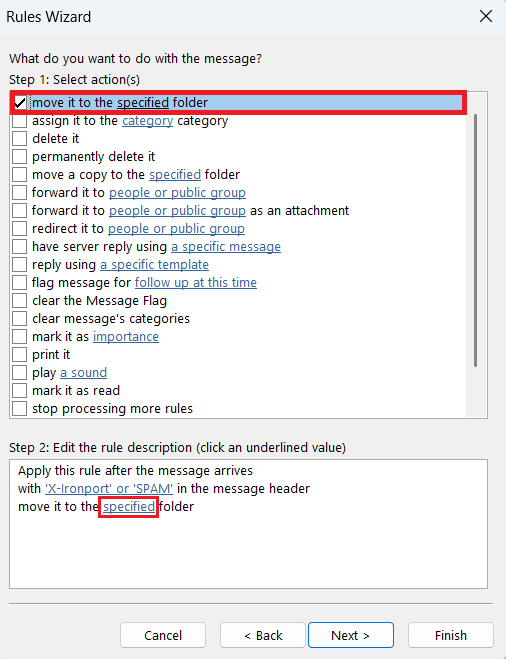
Check the box for [move it to the specified folder] and click [specified] at the bottom of the screen.
-
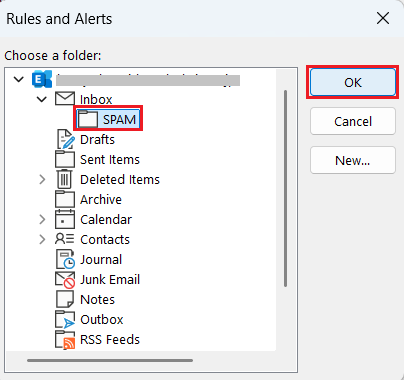
Select the "SPAM" folder you created earlier.
-
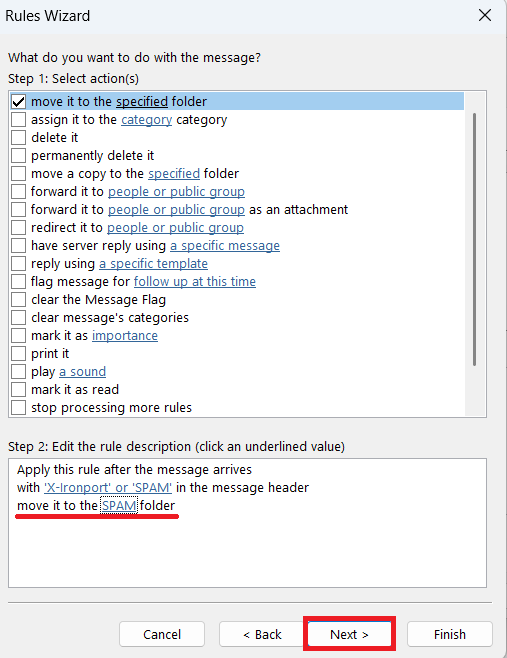
Confirm that it has changed to [move it to the SPAM folder], and click [Next].
-
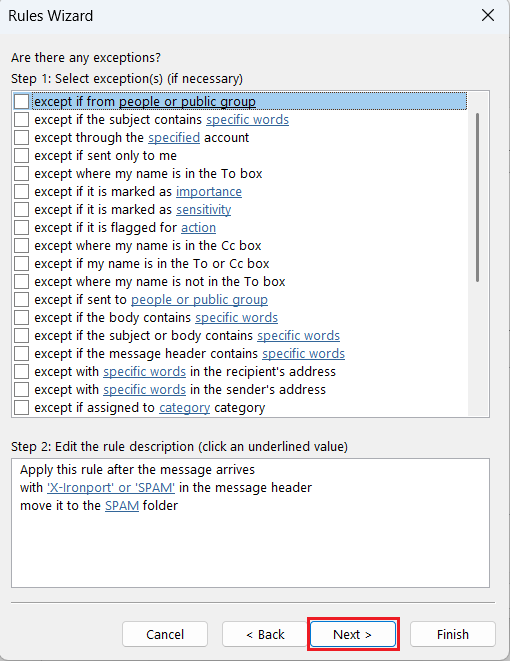
Without setting any exception conditions, click [Next].
-
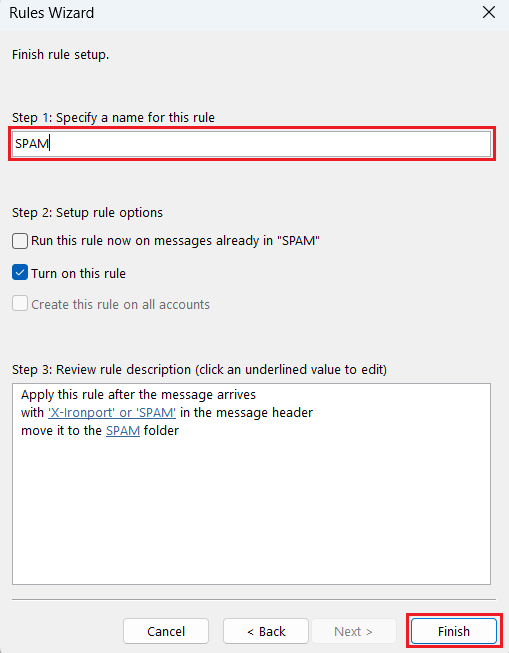
Enter "SPAM" in the [Specify a name for this rule] input field and click [Finish].
-
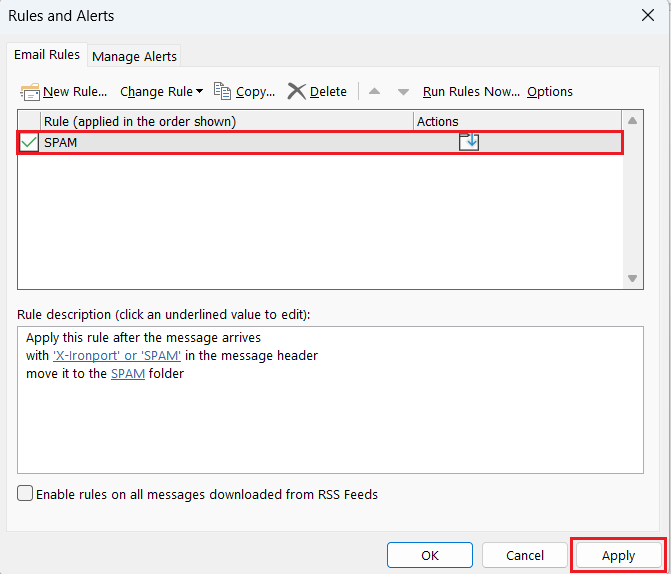
Confirm that the rule [SPAM] has been added, and click [Apply] to complete the setup.
Last-Modified: July 30, 2026
The content ends at this position.