





- Top >
Microsoft Outlook Settings (IMAP4)
Send and Receive Settings
-
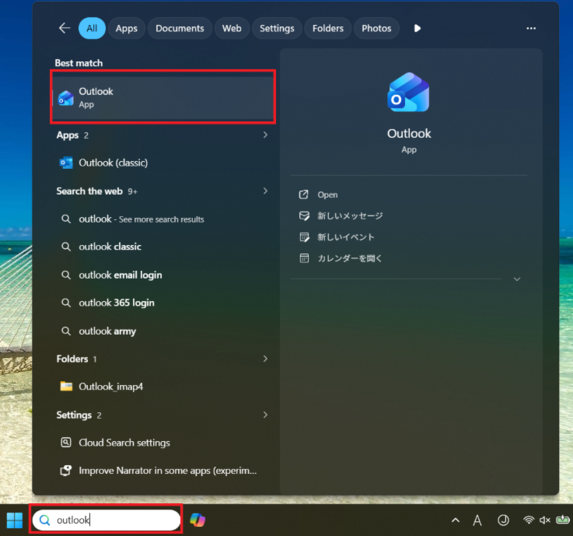
Type "outlook" in the search bar on the taskbar at the bottom of the screen, and click the [Outlook] app to launch it.
Note: Please be careful not to select [Outlook (classic)].
-
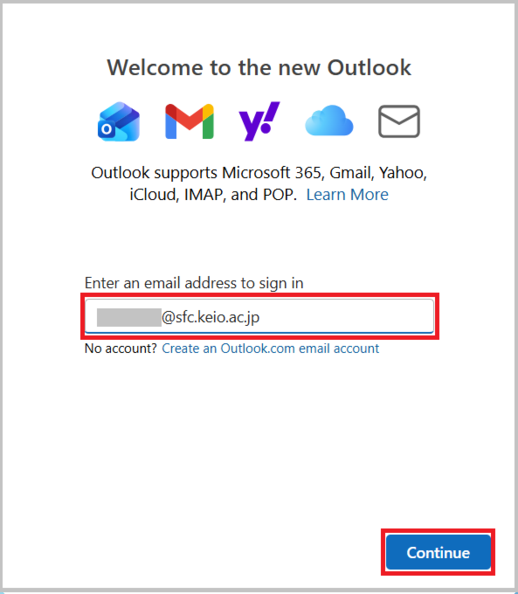
When you launch Outlook for the first time, the "Welcome to the new Outlook" screen will appear. Enter your SFC-CNS email address and click [Continue].
-
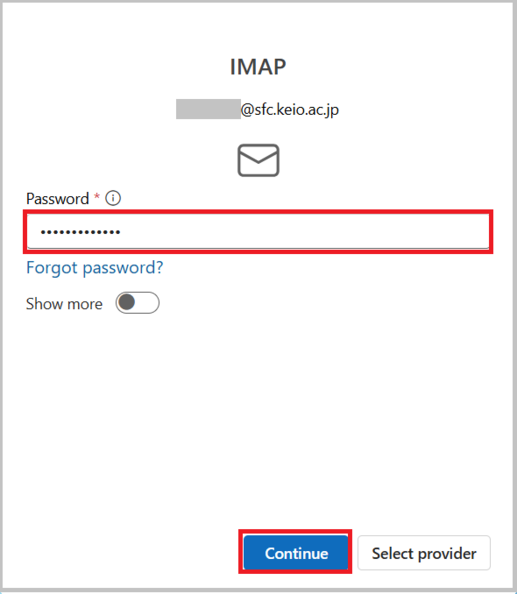
When the "IMAP" screen appears, enter your pre-set IMAP/SMTP-AUTH password in the "Password" field and click [Continue]. Your account details will be configured automatically.
Note: If you are not using automatic setup, please refer to How to set up manually.
-
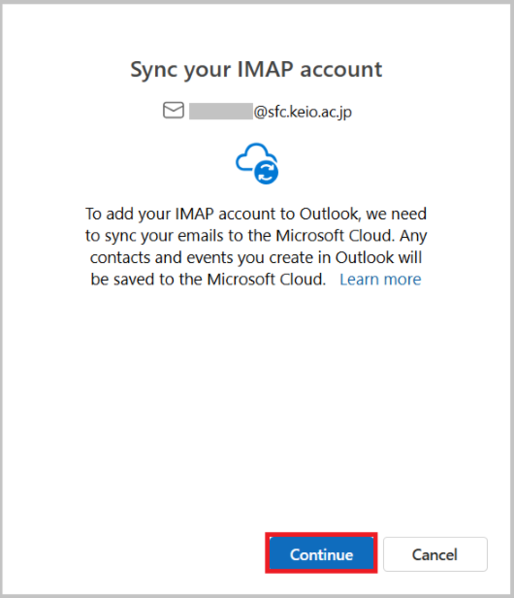
The "Sync your IMAP account" screen will appear. Click [Continue].
-
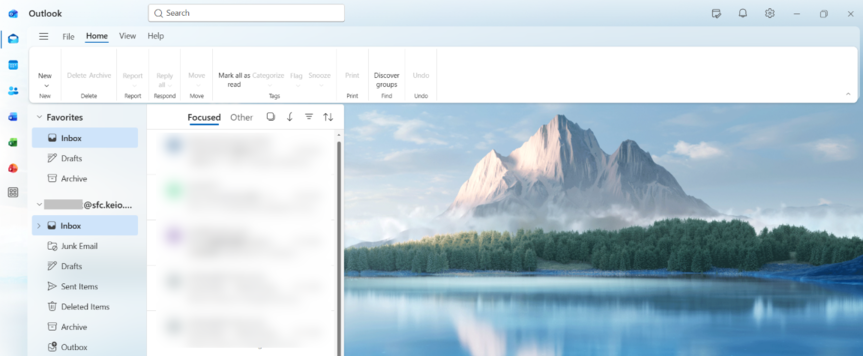
The "Inbox" screen for the created account will be displayed. Once your SFC-CNS email address is added, the setup is complete.
How to set up manually
-
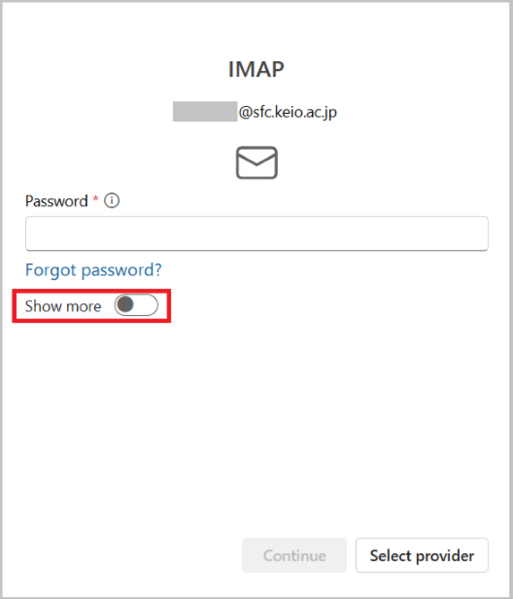
On the "IMAP" screen, turn on the [Show more] toggle button.
-
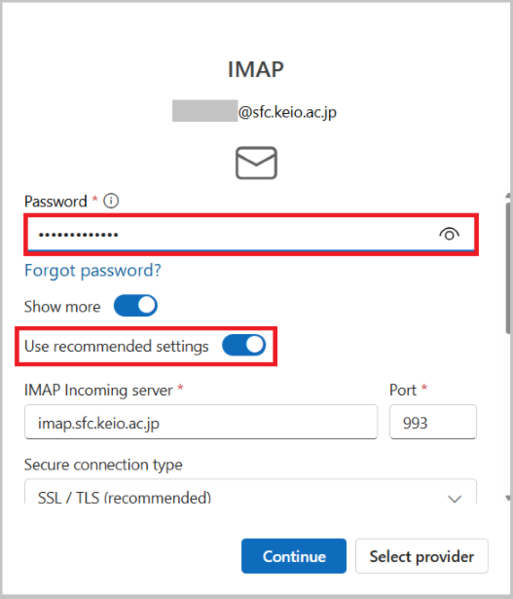
Enter your IMAP/SMTP-AUTH password in the "Password" input field, and turn on the [Use recommended settings] toggle button. (If it is already on, no action is required.)
-
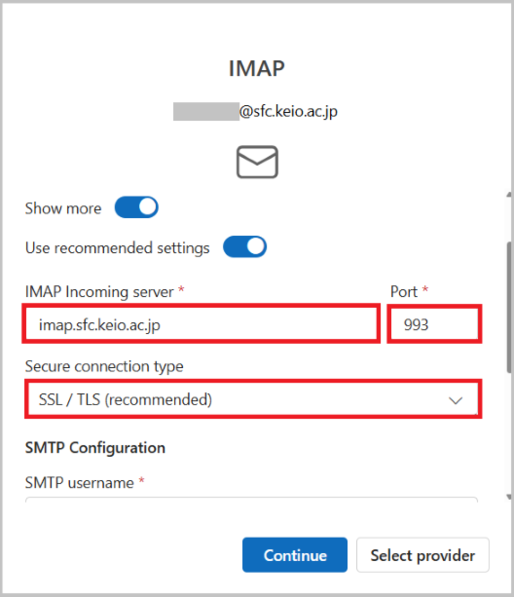
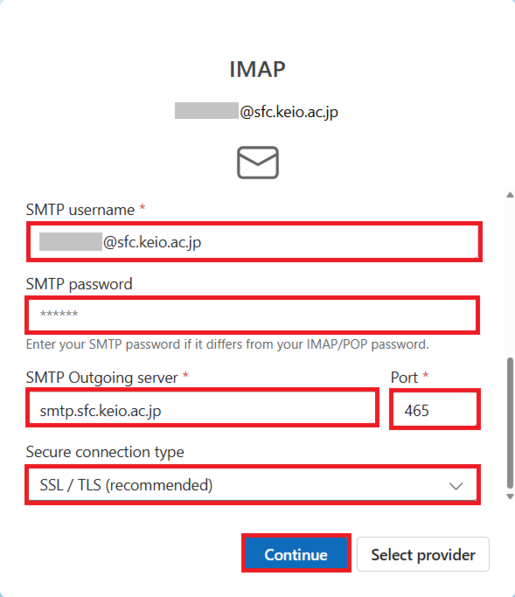
Make sure the displayed settings match the IMAP/SMTP server settings below, then click [Continue].
Note: If the settings are different, please refer to the table below and enter the correct settings.
IMAP Incoming server imap.sfc.keio.ac.jp Port 993 Secure connection type SSL/TLS SMTP username SFC-CNS email address SMTP password IMAP/SMTP-AUTH password SMTP Outgoing server smtp.sfc.keio.ac.jp Port 465 Secure connection type SSL/TLS
-
When the "Sync your IMAP account" screen appears, click [Continue].
-
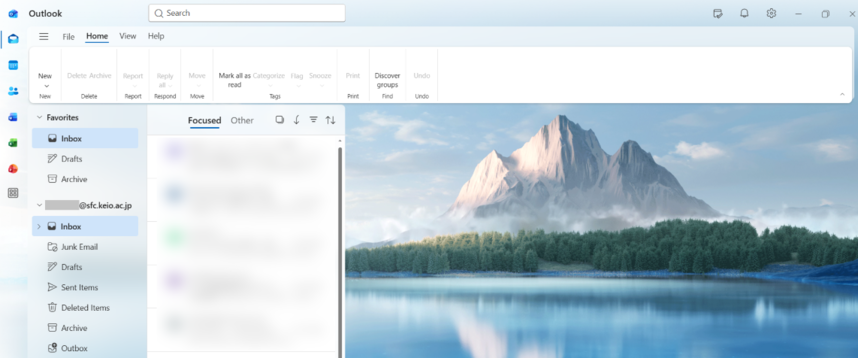
The "Inbox" screen for the created account will be displayed. Once your SFC-CNS email address is added, the setup is complete.
How to Read IMAP4 Email Offline
- Please see How to Backup IMAP4 Email.
Last-Modified: August 28, 2026
The content ends at this position.